
When you write an update on forg, you can publish it to multiple platforms simultaneously - X (Twitter), LinkedIn, Threads, and Bluesky - in one click.
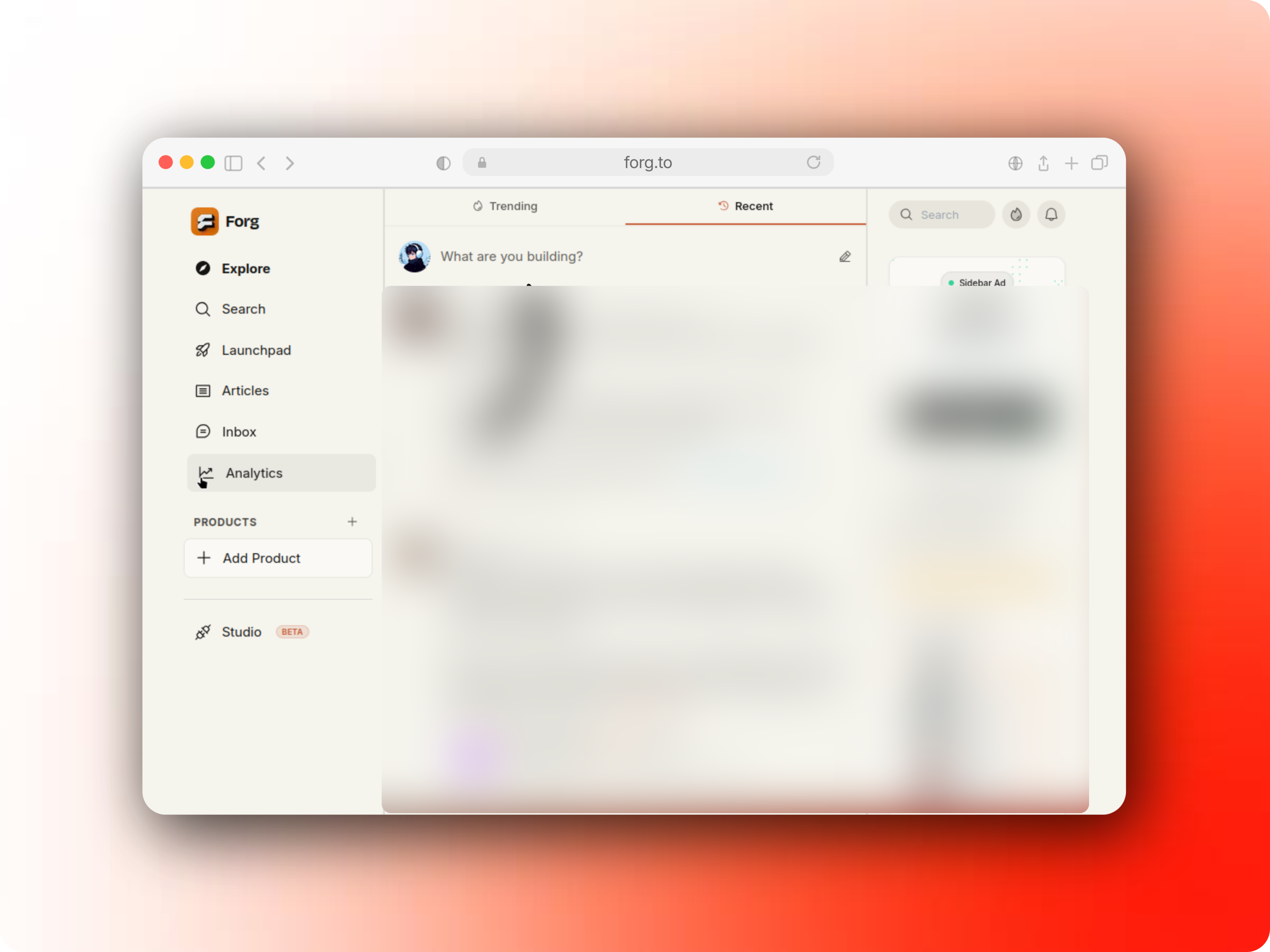
Post Composer Unopened
Step 1: Connecting your channels
Before you can cross-post, you need to securely link your social accounts to forg.
When you open the writing update modal, you'll see "Connect" buttons for X, LinkedIn, Threads, and Bluesky. Clicking these will guide you through the authorization process.
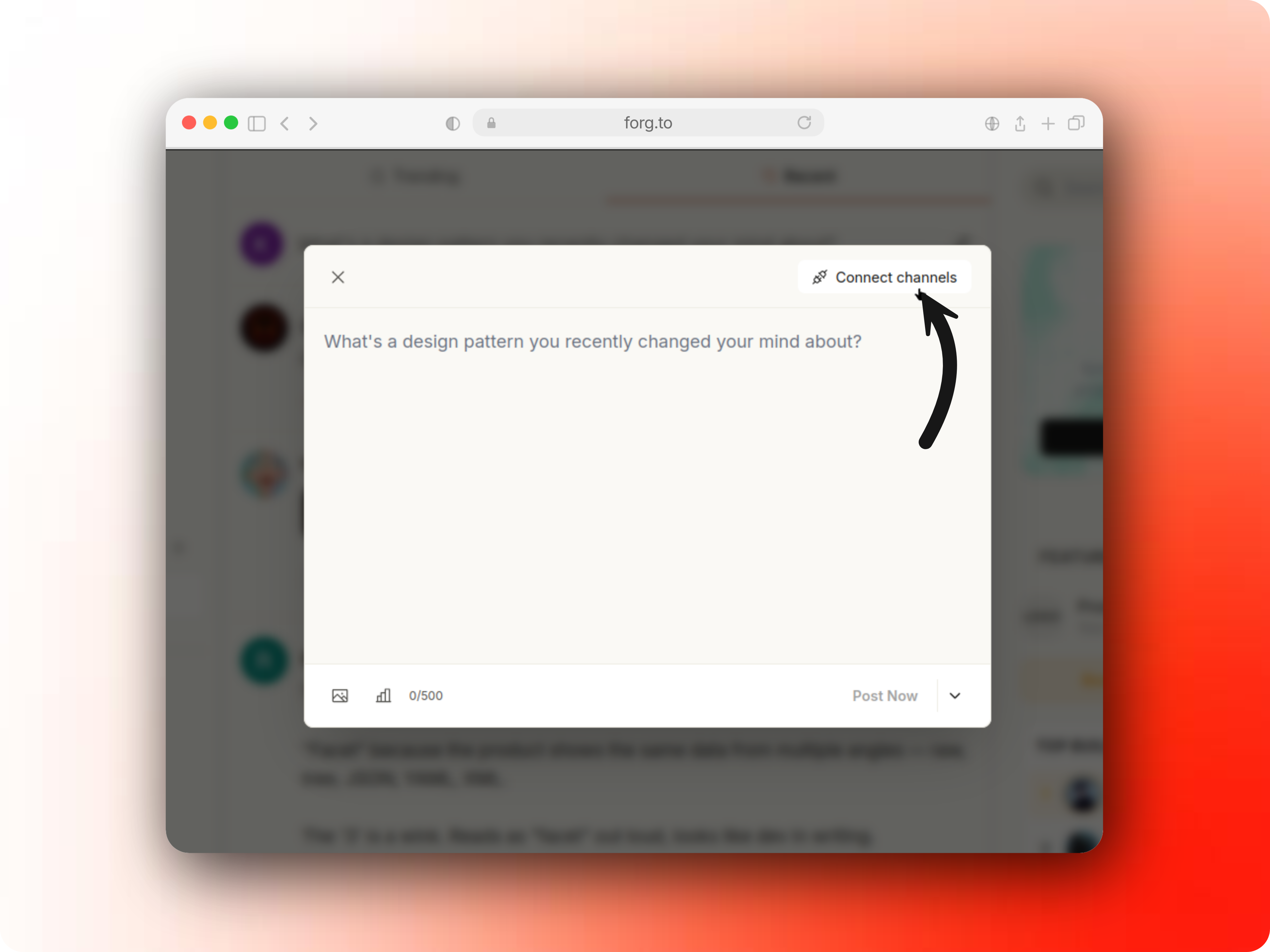
Post Composer Opened
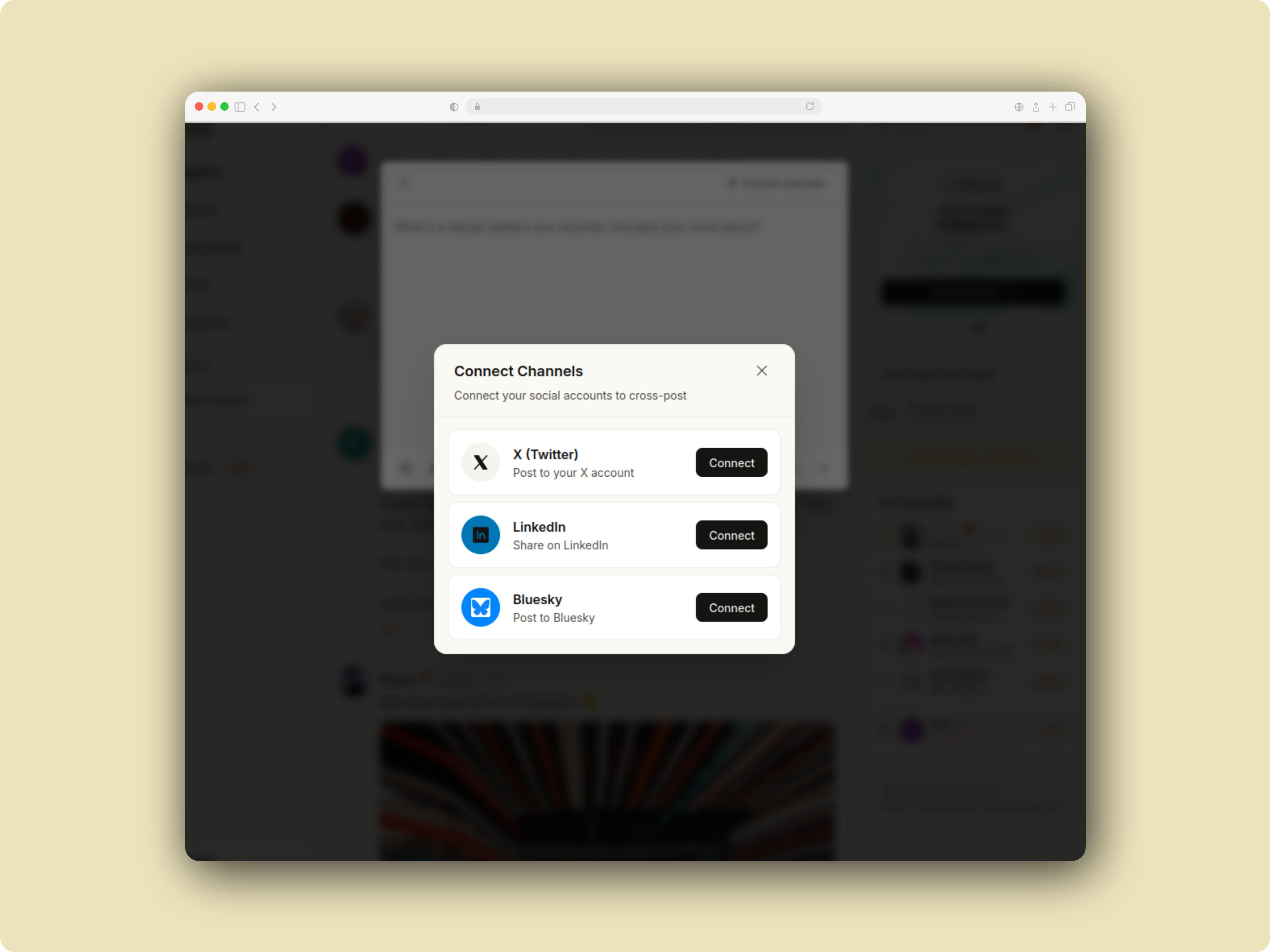
Connect Channels Modal
Step 2: Cross-posting your content
From your home feed or profile, click on the "Write an update..." box. Compose your main message, then toggle the icons for the platforms you want to cross-post to.
You can also edit and customize the content specifically for a particular channel! Once selected, you'll have the option to tailor your message so it perfectly fits each platform's audience.
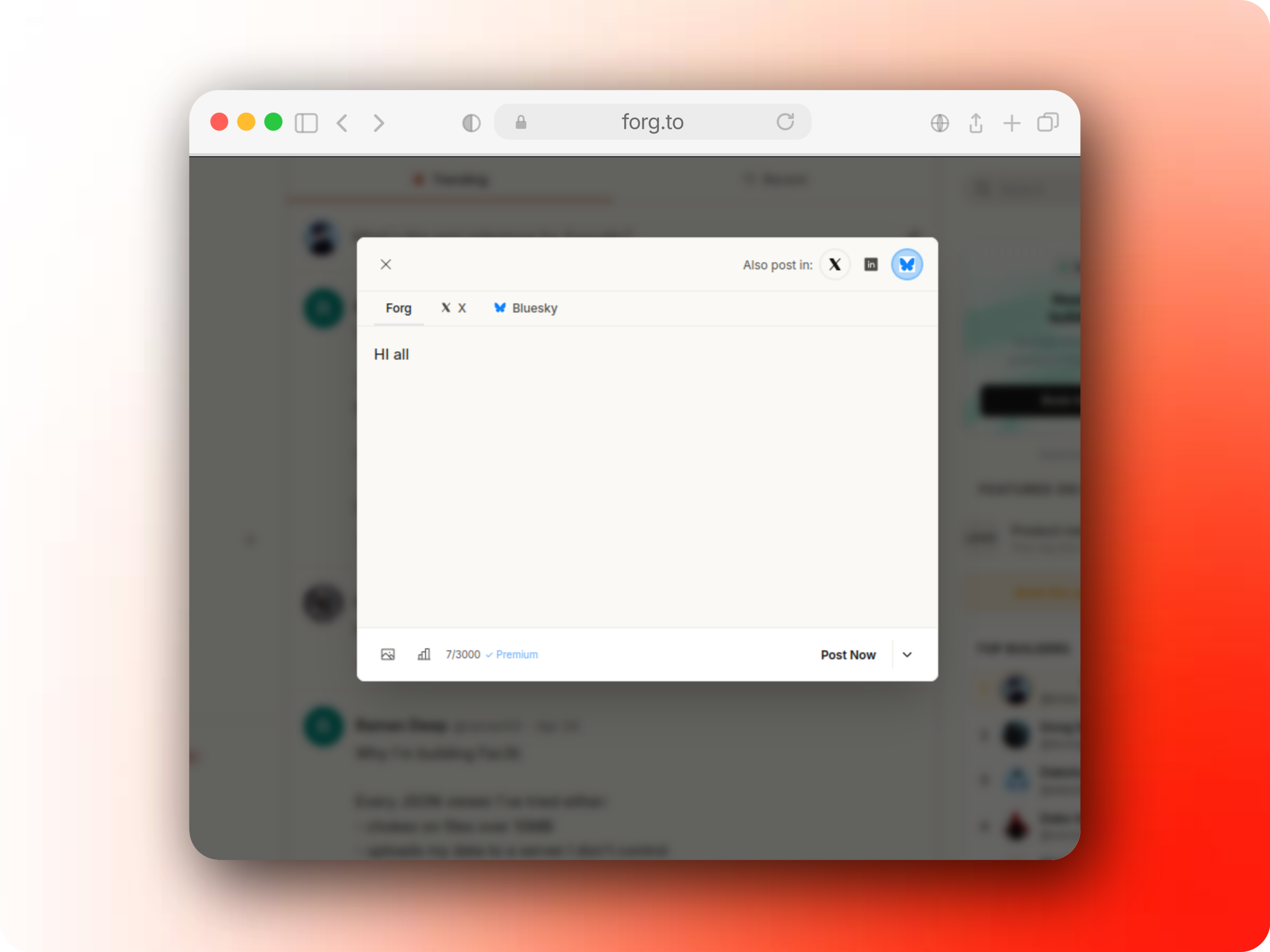
Cross Posting Modal